Overview
If your Windows PC is suddenly shutting down or showing a Blue Screen of Death (BSOD) with the message “KMODE_EXCEPTION_NOT_HANDLED”, don’t worry — you’re not alone.
This error often appears after:
-
A recent Windows update,
-
Faulty or outdated drivers, or
-
Hardware memory (RAM) issues.
In this guide, we’ll walk you through tested and permanent solutions to fix this issue and restore system stability.
Step 1: Uninstall the Recent Windows Update
Sometimes, a new Windows update can trigger system instability or conflicts with existing drivers. The first step is to check for any recent updates and uninstall them.
Steps to Uninstall a Recent Windows Update:
- Press Windows + I to open Settings.
- Navigate to Windows Update > Update history.
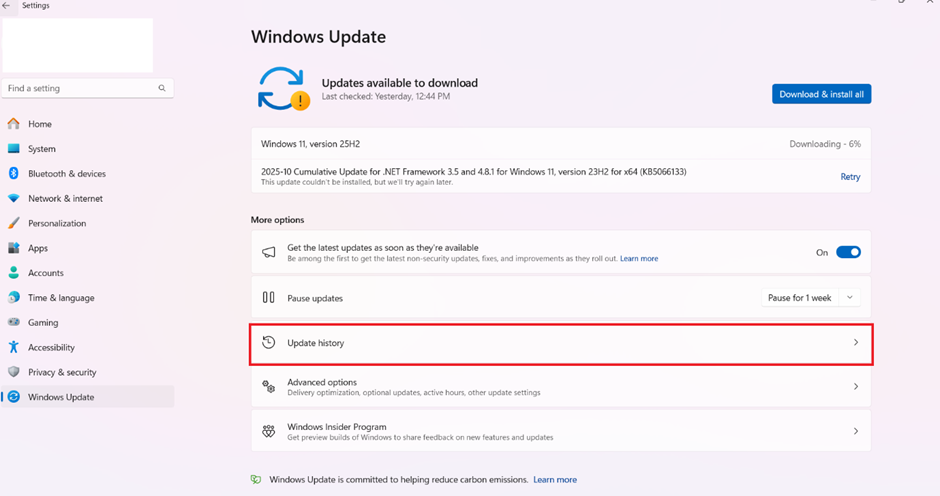
3. Scroll down and click Uninstall updates.
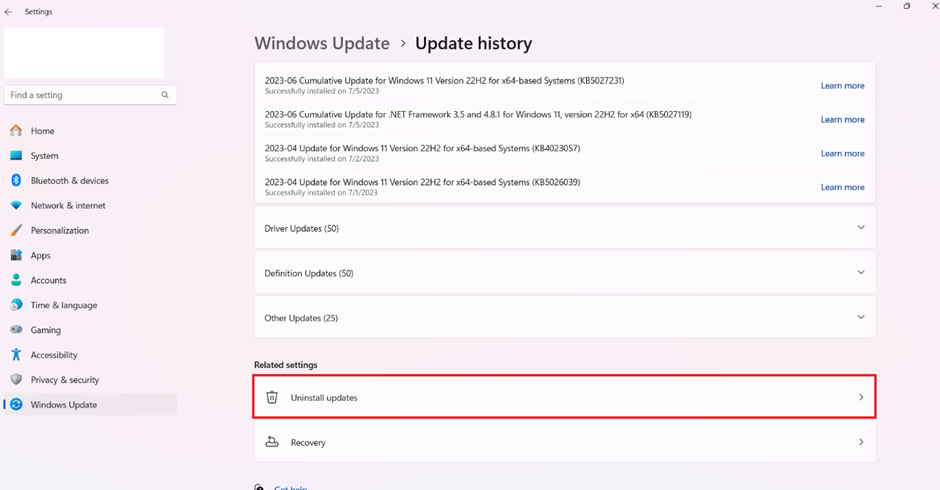
4. A list of installed updates will appear (as shown in your screenshot).
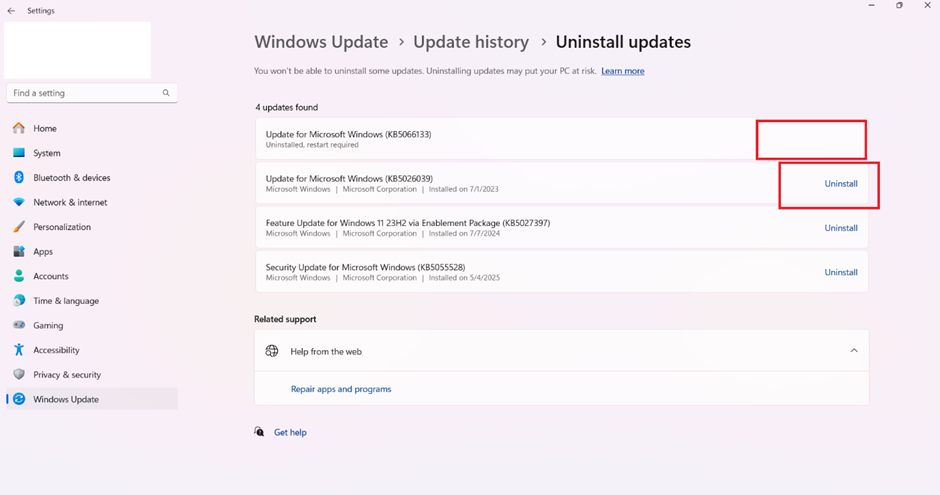
If the issue disappears, that update was the culprit.
If not, continue to the next step.
Step 2: Check for New Windows Updates
After uninstalling a problematic update, install the latest stable updates from Microsoft.
To Check for New Updates:
-
Open Settings → Windows Update.
-
Click Check for updates.
-
Install all available updates.
-
Restart your system once installation completes.
This ensures your PC runs the latest patches and driver fixes.
Step 3: Run a Memory Diagnostic Test (RAM Check)
Faulty or damaged RAM can trigger KMODE_EXCEPTION_NOT_HANDLED errors.
To Run the Memory Diagnostic Tool:
-
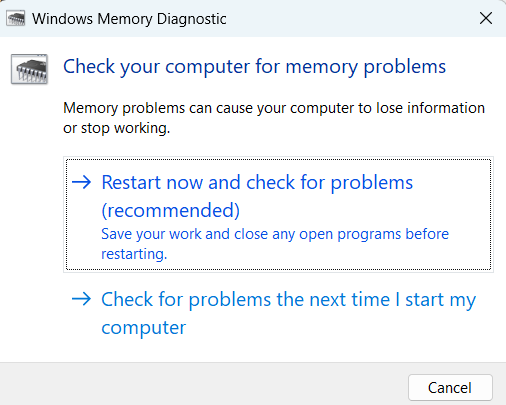
Press Windows + R, type
mdsched.exe, and press Enter. -
Choose Restart now and check for problems.
-
Your system will reboot and automatically test your memory.
-
After it finishes, open Event Viewer → Windows Logs → System to view results.
If memory errors are detected, test each RAM stick individually or replace the faulty module.
Step 4: Perform a Disk Check (CHKDSK)
Corrupt disk sectors or file system errors can cause sudden shutdowns and BSODs.
To Run CHKDSK:
-
Open Command Prompt (Admin).
-
Type the command below and press Enter:
-
chkdsk C: /f /r
-
When prompted, type Y to schedule the scan at next restart.
-
Restart your PC — Windows will scan and repair disk errors automatically.
Step 5: Update Your Drivers
Outdated or incompatible drivers are among the most common causes of this issue.
To Update Drivers Manually:
-
Press Windows + X, select Device Manager.
-
Expand key categories — Display adapters, Network adapters, Storage controllers.
-
Right-click each and choose Update driver → Search automatically for drivers.
-
Restart your system after updates.
Alternatively, go to Settings → Windows Update → Optional updates → Driver updates to install all recommended driver updates automatically.
Step 6: Run System File Checker (SFC) & DISM Scans
Corrupt system files can lead to BSODs and auto shutdowns.
To Repair System Files:
-
Open Command Prompt (Admin).
-
Run these commands one by one:
sfc /scannow
DISM /Online /Cleanup-Image /RestoreHealth
-
Wait for each process to complete, then restart your PC.
Step 7: Create a System Restore Point (Prevent Future Issues)
Once your PC is stable, create a restore point for easy recovery.
To Create a Restore Point:
-
Search Create a restore point in the Start menu.
-
Click Create, name it (e.g., “Stable System”), and save it.
If any future issue occurs, you can roll back to this healthy state instantly.
Final Thoughts
The KMODE_EXCEPTION_NOT_HANDLED or auto shutdown issue usually arises due to:
-
Problematic Windows updates
-
Faulty drivers
-
Corrupt system files
-
Memory or disk errors
By following these steps — uninstalling faulty updates, checking RAM and disk health, and updating all drivers — you can fix the BSOD issue permanently and maintain a stable, smooth-running Windows system.

Hi,
I hope you’re doing well! I wanted to share an article we recently published about bringing a Cavapoo puppy home. It covers everything from puppy-proofing your space and creating a cozy spot, to quick grooming hacks, time-saving training tips, and healthy feeding routines.
Your readers will discover practical ways to make life easier with a new Cavapoo, keep their pup happy and safe, and save time with smart routines—all while enjoying the joys of puppy ownership. The article is especially helpful for busy families or first-time dog owners looking for actionable advice.
I think it would be a perfect fit for your audience, and I’d love if you’d consider linking to it in one of your relevant posts. Here’s the link for quick reference: [ https://atlanticcavapoopuppiesforsale.com/shop/ ]
Thanks so much for considering it! I’d be happy to answer any questions or provide additional details if needed.
Warm regards,
You must be logged in to post a comment.